
DMA Evaluate lets you reassess your IRO inventory year on year without starting from scratch. The Assessment status field in the IRO long list structures this process, making it clear which IROs still need review and which are still valid.
This article walks through the recommended flow, from creating a new version to closing out the reassessment cycle.
Why this matters
Reassessing every IRO in detail each year is rarely practical, or needed, unless changes in your business, operations or value chain justify it. However, stakeholders expect evidence that your materiality outcomes remain accurate. A clear evaluation flow helps you:
- focus effort where it is most needed, particularly on short-term IROs and new IROs
- confirm top-down conclusions at topic level instead of reassessing every IRO in the topic
- keep a defensible audit trail across versions
The evaluation flow at a glance
- Create a new version of your Double Materiality analysis.
- Review top-down topics carried over from the previous version.
- Review the initial Assessment statuses assigned automatically on carry-over.
- Add new IROs where needed using the IRO Industry Landscape feature.
- Prioritize IROs marked as To assess, using filters.
- Assign SMEs to reassess where needed.
- Aggregate and validate the SME outcomes and manually update the status to Assessment complete.
- Adjust Not required IROs if circumstances have changed.
Step 1: Create a new version
When you create a new version of your analysis, IROs carry over from the previous version, including their scores, assessed criteria, materiality conclusion, and custom fields. Once you apply materiality thresholds in the new version, the carried-over materiality conclusions are re-evaluated against them.
Each IRO's Assessment status is set automatically:
- Short-term IROs → To assess
- All other IROs → Not required
Any new IRO added later, manually, via import, or via a suggestion) defaults to To assess.
Tip: short-term IROs are also flagged with a dedicated icon in the IRO long list. See Identifying Evaluation Signals - Short-term IROs.
Step 2: Review top-down topics
If the previous version includes topics concluded top-down, review each topic's decision to confirm it hasn't changed. Top-down conclusions are made at topic level, so you confirm the topic instead of reassessing its IROs one by one.
If you're concluding a topic top-down for the first time in this cycle, use the previous version's materiality conclusions for that topic's IROs to inform your top-down decision.
Note: A top-down decision made in this cycle replaces the materiality conclusions carried over from the previous version for that topic's IROs.
For how to set or change a topic's materiality path, see Choosing a topic's materiality path: top-down or bottom-up.
Step 3: Get an overview of what needs attention
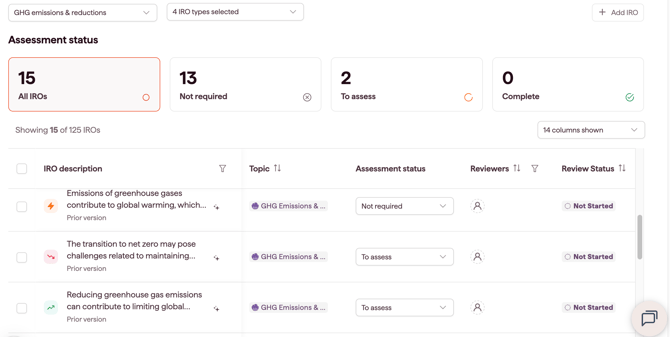
Above the IRO long list, overview counters show how many IROs fall into each Assessment status. These counts react to your active filters, so you can quickly see, by clicking on each counter:
- the total IRO count in your inventory
- how many IROs do not require assessment
- how many IROs need assessment in this cycle
- how many IROs have already been assessed
Step 4: Add new IROs where needed
Close gaps in your inventory with suggestions from the IRO Industry Landscape feature, or add IROs manually or via import. New IROs default to To assess.
Step 5: Prioritize and filter
Use the filters at the top of the IRO long list to focus on what matters:
- Filter Assessment status to To assess or Not required.
- Layer on additional filters such as topic or IRO type if you want to narrow further.
- Work through the filtered set in priority order, reviewing where a change of status is required.
Step 6: Assign SMEs where needed
For IROs that require input from Subject Matter Experts (SMEs), apply the To assess filter before starting the assignment. Full steps are covered in Assigning Subject Matter Experts (SMEs) to Assess IROs.
The SME completes their work using the Review status workflow. When they finish, they mark their review as Done.
Note: The Review status and the Assessment status are two independent fields, so an SME marking a review as Done does not mark the assessment as complete and Owners keep control of the final sign-off.
Step 7: Aggregate and validate assessment results and mark as complete
Once you have reviewed the SME's input and aggregated the results:
- Open the IRO long list.
- Locate the IRO.
- Change the Assessment status to Assessment complete.
Only Owners can update the Assessment status. Readers can view it but cannot edit it, and Reviewers do not see the column at all.
Step 8: Adjust Not required IROs
If circumstances have changed for an IRO marked Not required, change its Assessment status to To assess in the IRO long list so it is included in this cycle's review.
Closing out the review cycle
A reassessment cycle is complete when no IROs remain in To assess. At that point, every IRO in the version is either Assessment complete or Not required, and your analysis is ready to feed into the next step: defining the materiality threshold. Applying the thresholds re-evaluates the materiality conclusions of scored IROs, including those carried over from the previous version.