
An Applicability Assessment reads your entity data to decide whether a regulation is likely to apply. A profile with gaps produces Uncertain determinations, so review your entities before you run one.
Why this matters
- Avoid Uncertain determinations due to missing entity data
- Know which entities are ready to assess and which are not
- Scope the assessment once, using groups, instead of rebuilding a selection each cycle
- Have an answer ready when someone asks where a figure came from
What an assessment needs
There are two levels.
Location and industry data are mandatory. Without them, an assessment cannot run for that entity.
Employee count and revenue are not mandatory, but they decide most size thresholds. An assessment that runs without them has less to work with and returns more Uncertain determinations.
Fill all four on every entity you intend to assess.
Location (mandatory)
- HQ country. Determines which national rules are considered in the first place.
- Countries of operation. A regulation can apply where an entity operates, not only where it is registered. The two are assessed independently, so an entity with a blank Countries of operation field is assessed only against its headquarters country.
- US States of operation, where the entity operates in the United States. US state-level regulations depend on it.
Industry data (mandatory)
- Primary Industry and Secondary industries. Determine which sector-specific rules are in scope. Both are mandatory, not only the primary.
Employee count (recommended)
- Employee count. Size thresholds depend on it alongside revenue.
Revenue (recommended)
- Revenue and its currency. Size thresholds depend on it. Use the figures you would report externally, for the period you would report.
See Entity fields explained for what each field drives.
Note: mandatory here means mandatory for an assessment to run, which is not the same as the fields the entity form marks required when you save. Beyond these four, the Applicability Assessment asks for anything else a specific regulation needs when you run it.
Review the pre-filled data
Pre-filled fields came from public company data, not from your team. They are a starting point. Check them before your first assessment.
Add additional fields
Where a regulation's applicability check needs data your entity profile does not hold, the system flags the missing data and the additional fields required. Up to 38 additional fields are available.
What you supply is saved to the entity profile, not used once and discarded. The next assessment reads it from the profile, so the gap is filled for every regulation that depends on that field, not only the one that asked.
See Adding custom fields to an entity.
Build the groups you will assess
Create a group for each set of entities you assess together: a region, a division, a supply chain tier, a reporting boundary. Scoping an assessment By group means you build the selection once and reuse it every cycle.
An entity can sit in several groups, so you do not have to choose a single way of organizing. See Creating and managing groups.
Who can run an assessment
Every user with access to Regulations can use the Applicability Assessment. You can edit the assessments you run, and view other users' assessments without editing them.
Editing the entity data behind an assessment is a separate permission. See What is Company Profile.
A readiness check before you run
- Every entity you intend to assess has HQ country filled
- Every entity has Revenue and Employee count
- Countries of operation reflects where the entity operates today, not where it operated at the last restructure
- Entities you no longer own are archived, not sitting in the list. See Archiving an entity
- The group you plan to assess contains the entities you expect, and no more
What happens when you change the profile afterwards
Editing an entity updates the determinations that depend on it. You do not run the assessment again yourself.
The affected determinations are flagged Determinations updated, with the line "These determinations changed after their underlying data was updated."
- Click the flag to see what changed.
- Review the determination update, and the company and regulation pair it belongs to.
- Open the assessment. The updated result is displayed.

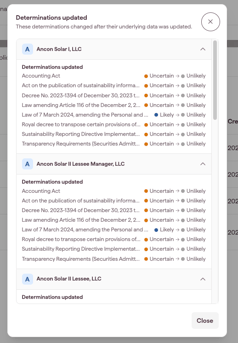
Note: a changed determination is still a determination to review. An entity edit can move a regulation in or out of scope, so read the update rather than assuming the new result confirms the old one.
Note: determinations are generated by AI and are a starting point for review, not legal advice. Confirm specific obligations with your legal or compliance team.