
Groups are bundled collections of entities. Use them to run an Applicability Assessment across many entities in one action, instead of selecting entities one by one every time.
A group holds no data of its own and no applicability state of its own. It is a selection shortcut.
Why this matters
- Run one assessment across a whole region, division, or supply chain tier
- Reuse the same selection every assessment cycle, without rebuilding it
- Organize entities on more than one axis at the same time
- Route work to the person who owns that part of the organization
How groups work
- Groups are flat. There is no hierarchy between groups, and no parent and child relationship.
- An entity can belong to any number of groups at once. A French subsidiary can sit in EMEA and in Tier-1 suppliers.
- Groups are visible to everyone in your account.
- Groups are specific to your account and are not shared with other Datamaran customers.
- Groups are created and managed in the platform. They are not part of the entity import file.
- Account Owners, Admins and Editors can create and edit groups.
- You can delete the groups you created. Account Owners can delete any group in the account.
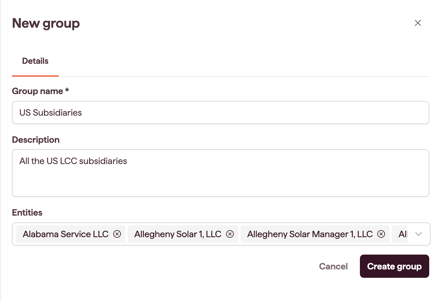
How to create a group
Build your entity list first. A group is drawn from entities that already exist, so there is nothing to group until your entities are in place. See Adding and editing an entity and Importing and exporting entities in bulk.
- Open Company Profile and click Groups.
- Click Add group.
- Enter a Group name, and a description if you want one.
- Select the entities to include. The footer shows a running count, for example, 12 selected.
- Click Create group.
The group appears in the Groups list with its entity count and the date it was last updated.
Tip: name groups for how you will use them, not for what they contain. EU manufacturing and US listed entities tell a colleague when to pick them. Group 1 does not.
How to add or remove entities
There are two ways to change what a group contains. Both start from the Groups list.
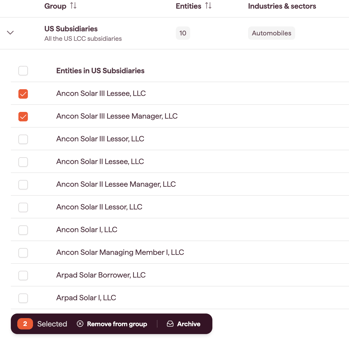
Expand the group in place
Use this to quickly remove entities without leaving the list.
- Click the arrow icon next to the group name to show the entities in that group.
- Tick the entities you want to remove. You can select more than one.
- At the bottom of the entity list, click Remove from group.
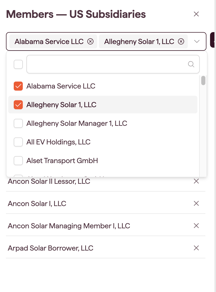
Use the Manage Entities panel
Use this when you are adding entities or adding and removing in the same pass.
- In the Groups list, click Manage Entities on the group you want to change.
- A side panel opens showing the entities in your account.
- Add or remove entities from the panel.
Note: removing an entity from a group does not delete the entity. It stays in your entity list and in every other group it belongs to.
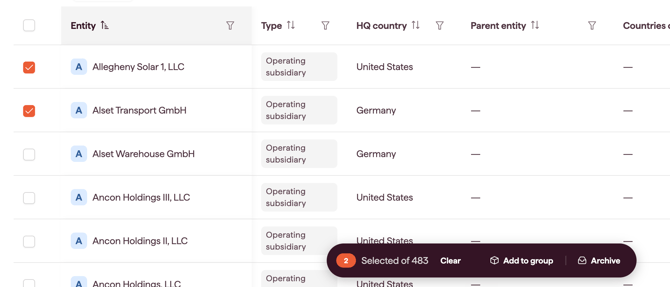
Add from the entity list
Use this when you are working through your entities and want to group some as you go.
- Open the entity list.
- Tick the entities you want to group.
- At the bottom of the page, click Add to group.
How to rename a group or edit its description
- Open the group from the Groups list.
- Update the group name or description.
- Save.
The new name is visible to everyone in your account immediately.
How to delete a group
- Open the group, or use the delete control on the group in the Groups list.
- Confirm in the dialog.
Note: deleting a group does not delete its entities. They stay in your entity list and in any other groups they belong to.
Who can delete a group
- You can delete the groups you created.
- Account Owners can delete any group in the account, whoever created it.
A group created by a colleague is theirs to delete, or an Account Owner's. If you need one removed that you did not create, ask an Account Owner.
Note: entities work the other way. An entity is never deleted, by any role. Take it out of your active list by archiving it instead. See Archiving an entity.
Using a group in an Applicability Assessment
When you scope an assessment, choose By group and pick the group. You can deselect individual entities before running, so a group does not lock you into assessing every member every time.
See Preparing your Company Profile for an Applicability Assessment.
Notes on how this feature is designed
- Groups are deliberately flat. Nested structures create correlation problems when an assessment runs down a deep tree, and most real organizational structures do not fit a single hierarchy anyway.
- Because an entity can belong to many groups, you can model region and division and supply chain tier at the same time, rather than choosing one.
- A group has no applicability result of its own. Determinations are always made per entity, and a group gathers them.