
Import and Export let you work on your entity list as an Excel file. Export the full list, edit it offline, and re-import to create new entities and update existing ones in one action.
This is also how you make the same change across many entities, because there is no bulk edit screen in the module.
Why this matters
- Set up a large organisational structure without creating entities one at a time
- Update a shared field across many entities in a single pass
- Work in a spreadsheet, where your subsidiary list probably already lives
- See validation errors before anything is committed
How to export your entities
- Open Company Profile.
- Click Export in the top-right toolbar.
- Choose Export as Excel (.xlsx).
The file downloads with every entity and every field currently held in the platform, in the same shape as the import template. There is nothing to reformat: your export is the file you edit and upload back.

How to prepare the file
The simplest starting point is an export of your current entities. A blank template also exists. Find it in the Import entities option.
- One row per entity, starting at row 5
- Entity name, Entity type, HQ country and Primary Industry are required on every row
- Separate multiple values in a single cell with a pipe character, for example
France | Germany | Spain. Do not use commas - Use selector values from the template's lists when available. Free text that does not match is rejected
- Leave a cell blank to leave the field empty.
Note: the pipe separator matters. A comma inside a cell is read as part of the value, not as a separator, and the row fails validation.
Group membership is not part of the file. Import your entities first, then create and manage groups in the platform. See Creating and managing groups.
How to import
- In Company Profile, click Import in the top-right toolbar.
- Upload your file.
- Click Confirm import.
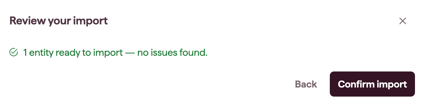
What the preview shows
Nothing is committed until you confirm. The preview reports how many entities will be created, how many updated, how many skipped and how many errors the import has.
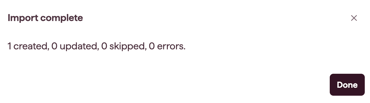
What happens after importing
- New entities appear in the entity list, pre-filled where a match was found
- Existing entities are updated in place
- Every imported entity carries an audit entry recording that it was created via bulk import
Using export and import to edit in bulk
Changes flow both ways. An edit you make in the platform shows up in your next export, and an edit you make in the file shows up in the platform once you import. The two stay in step, so you can move between them freely.
To change the same field across many entities:
- Export the entity list.
- Edit the column in Excel.
- Import the file back.
- Check the preview shows the expected number of updates and no unexpected creations.
Tip: do not change the Entity name column when you are updating existing entities. The name is how a row is matched to an existing record, so editing it creates a new entity instead of updating the old one.