
Custom fields capture information about an entity that the standard fields do not cover, so the Applicability Assessment can take it into account.
They come from a predefined list. You choose from the fields Datamaran provides rather than inventing your own, and up to 38 are available.
Why this matters
- Give the assessment context that a standard field cannot hold
- Fill the specific gaps a regulation's applicability check depends on
- Keep that context in the platform rather than in a spreadsheet beside it
How custom fields work
- The list is predefined. You select the fields you need from it
- Up to 38 fields are available
- Values are filled per entity, so the same field can be used on some entities and left blank on others
- The Applicability Assessment reads the values as additional context when it evaluates an entity
- Account Owners, Admins and Editors can add custom fields and enter values, the same roles that edit entities
Let the assessment tell you which fields you need
You do not have to work through all 38 and do unnecessary work. Where a regulation's applicability check requires data your entity profile does not hold, the system flags the missing data and asks questions directly on the screen to run the assessment. Your responses are saved in the company's profile. See Preparing your Company Profile for an Applicability Assessment.
What you add is kept
Data you supply in response to a missing-data flag is saved to the entity profile. It is not used once and discarded. The next assessment reads it from the profile, so the same regulation does not ask you for it again, and any other regulation that depends on the same field has it already.
This is why it is worth answering the flag properly the first time. A value entered to clear a prompt becomes part of the entity's record.
How to add custom fields
- In the entity list, choose an entity.
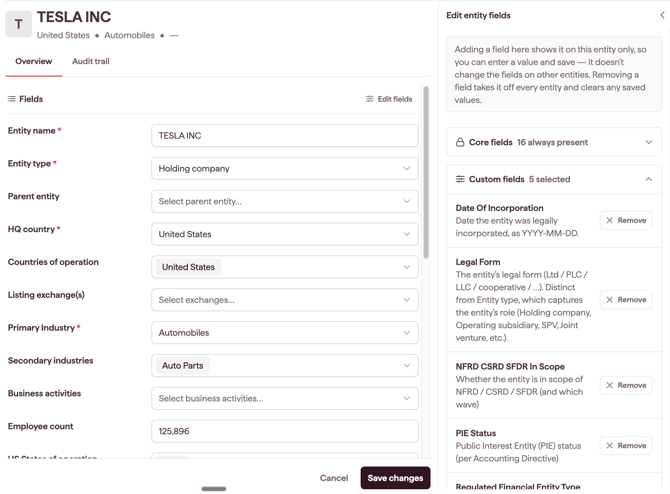
- Click Edit Fields.
- In Add custom fields, select the fields you want.
- Save changes.
The fields are added to the entity you chose, and to that entity only. To add the same field to another entity, repeat the steps on that entity.
Note: removing a field works the same way. It takes the field off the entity you are working on and clears the value saved against it there. Other entities keep the field and their own values.
Filling in values
What you enter depends on the field. Some are free text, some offer suggestions as you type, and some give you a fixed set of options to choose from.
Where a field offers suggestions or options, use them rather than typing your own wording. The assessment matches the terms the platform already knows.
Where a field is free text, write the value the way you would explain it to a colleague:
- be specific.
Lithium ion NMCgives the assessment more to work with thanbatteries - use the term the regulation would use, where you know it.
PFASis more useful thanspeciality coatings - where more than one value is allowed, separate them by pressing enter or adding a comma.