
Company Profile holds your entity list. You reach it from Management or from the account menu at the bottom of the sidebar, and both routes open the same list.
Why this matters
- Reach your organisation's structure from anywhere in the platform
- See at a glance which entities are complete and which still need work
- Switch between the entity list and your groups without leaving the module
What you see the first time
On your first sign-in, you land on a screen that asks you to set up your entities.
Two routes lead to the same place: Management, and Company Profile. Both open your entity list, so it makes no difference which you use.

How to open Company Profile
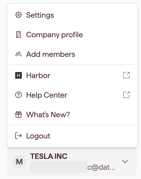
- Click the avatar (your account name) at the bottom of the sidebar.
- Select Company Profile.
Tip: the same menu holds Settings, where you manage users and licences. See Open and navigate Settings.
What you see in the entity list
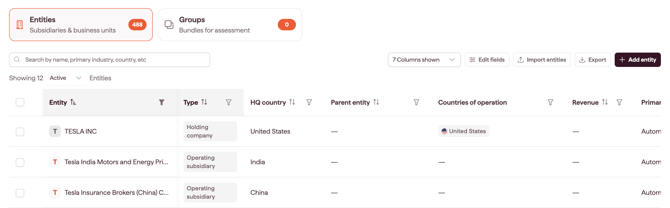
The entity list holds your parent organisation and every subsidiary Datamaran created for you. For a large group this can run to several hundred entities. Your parent organisation appears at the top.
Each row shows by default:
- Entity name
- Entity type: Subsidiary, Joint venture, Branch, or Other
- HQ country
- Parent entity
- Countries of operation
- Revenue
- Primary industry
- Employees
Pre-filled fields
Datamaran pre-fills what it can from public company data. Pre-filled values are editable: once you change one, it is yours.
Note: pre-filled data is a starting point, not a verified record. Review it before you rely on it for an assessment.
How to open an entity
Click the entity name. A side panel opens, showing the entity's fields and their values, where you can review or edit them.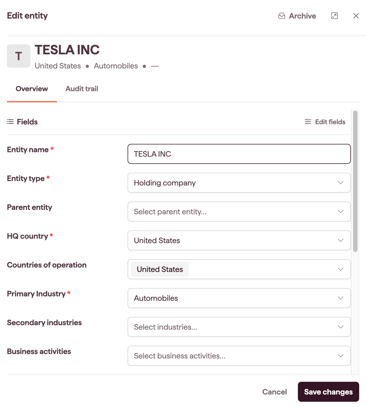
Switching to Groups
Click Groups in the Company Profile navigation to see every group in your account, with its entity count and the date it was last updated. See Creating and managing groups.
Toolbar actions
The toolbar at the top right of the entity list holds the account-level actions:
- Add entity to create a new entity.
- Edit Fields opens custom field management. See Adding custom fields to your entities.
- Export downloads every entity and field as an Excel file. See Importing and exporting entities in bulk.
- Import entities uploads an Excel file to create or update entities in bulk.