
When you set a topic's Materiality path to Top-down, you conclude the topic is material at topic level, without scoring each IRO. This article covers what then happens to the topic's IROs: which ones inherit the top-down conclusion, and how to send specific IROs for individual assessment instead.
You choose a topic's path in the Topic Lens tab. See Choosing a topic's materiality path: top-down or bottom-up. This article picks up where you confirm Top-down for a topic that has linked IROs.
Why this matters
- Lets a clear-cut topic carry its IROs without scoring each one, so your effort goes to the IROs that need individual judgement
- Lets you still score the specific IROs that need it, without switching the whole topic to bottom-up
- Records which IROs were concluded top-down and which were assessed individually, for your audit trail
What happens to IROs when you conclude a topic top-down
After you select Top-down and enter a Rationale, if the topic has linked IROs the button reads Review [number] IROs. Click it to open the Review impacted IROs step.
Every linked IRO is listed with its materiality change: Undecided to Material (top-down). All IROs are selected by default, so by confirming you let them inherit the topic's top-down conclusion.
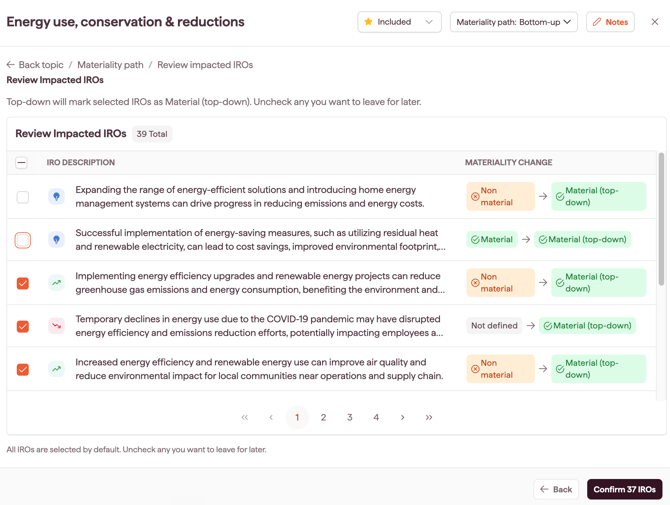
Leaving an IRO for individual assessment
To assess a specific IRO on its own instead of letting it inherit the conclusion, uncheck it on the Review impacted IROs step, then click Confirm [number] IROs.
- Checked IROs become Material (top-down) and inherit the topic conclusion.
- Unchecked IROs stay Undecided and are left for you to assess individually.
Note: you can change this later. Reopen the topic from the Tornado view in Topic Lens and adjust which IROs are selected.
Assessing the Undecided IROs in the IRO Hub
The IROs you leave Undecided are scored individually, the same way as on the bottom-up path:
- Go to the IRO Hub tab and open the topic.
- For each IRO you want to assess, set its Assessment status to To assess. The other options are Not required and Complete.
- Assign SMEs and collect their scores. See Assigning Subject Matter Experts (SMEs) to assess IROs.
- Apply your materiality threshold to decide each assessed IRO. See Defining the IROs materiality thresholds.
- When an IRO is finished, set its Assessment status to Complete.
At the top of the topic's IRO list, the Assessment status summary shows the counts across All IROs, Not required, To assess and Complete, so you can track what is left.
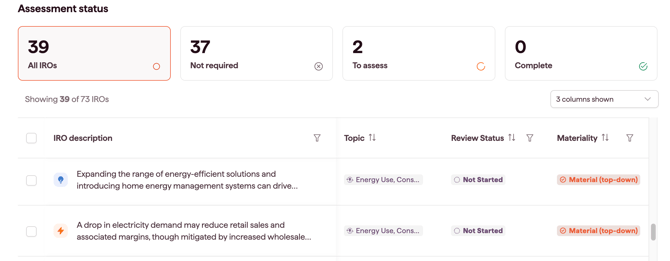
How this shows across the module
- On the Topic Lens, the topic carries the status Included Material (top-down).
- In the topic's IRO list, each IRO shows either Material (top-down) (inherited) or Undecided (left for individual assessment).
- An IRO you assess individually shows Material or Not material once you set the thresholds in the Materiality Review tab. Until thresholds are set, it stays Undecided.