
Filters in the Regulations module let you narrow the regulatory database across geography, industry, topic, legal status, enforcement, and several other fields.
The same filter set is available in both Overview (when building the scope of a View) and Research (when exploring the database openly). The difference is how you use them: in Overview, filters define a stable monitoring universe that you save as a View; in Research, you use them more freely to investigate specific questions and one-off queries.
Why this matters
- Combine any of the available filters to narrow the regulatory database to what you need
- Investigate by legal status, enforcement level, regulatory flag, issuer, or targeted entity for cross-jurisdictional questions
- Separate results by document type to tell the source law apart from national measures and guidance
- Save a useful Research query as a View to fold the result back into Monitoring
- Start broad and refine progressively, without committing to a saved scope
Where to find filters
Filters work the same way in Overview and Research:
- In the main menu, select Regulations.
- Open Overview or Research.
- Click Add filters to open the full list of available filters.
- Select the filters you want to apply.
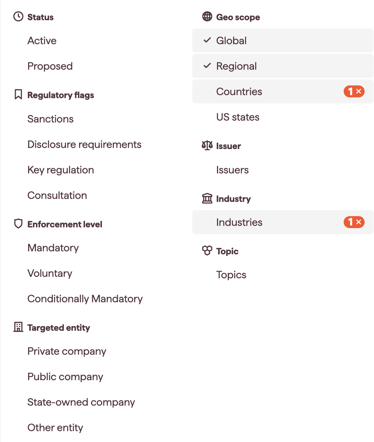
In Research, filters can also be added from the Refine your search suggestions that appear once you have results. A suggested filter is added to this same filter set and behaves identically. See Research: open-ended exploration of the regulatory database.
The available filters
Each filter can be applied independently or in combination with others.
Geo Scope
Narrow by country or region; include or exclude global and regional regulations. Include specific US states.
Industry
Narrow by SASB SICS industry. Cross-Sectoral Match controls whether regulations that apply across all industries are included alongside sector-tagged regulations.
Topic
Narrow by ESG topic tagged by Datamaran's regulatory team. Broader topic match includes regulations where the selected topics are addressed, but are not necessarily the main focus.
Status
Narrow by whether a regulation is already in force.
- Active: regulations already in force or applicable.
- Proposed: regulations not yet in force, such as bills, proposals, or drafts.
Enforcement level
Narrow by the legal weight of the regulation.
- Mandatory: legally enforceable and binding.
- Voluntary: advisory in nature, not legally binding.
- Conditionally Mandatory: binding only under specific conditions, for example, for members of an industry association or for signatory states.
Regulatory flags
Filter by flags assigned to specific regulations by Datamaran's regulatory team:
- Sanctions: regulations whose text references sanctions, including administrative sanctions, civil fines, criminal sanctions, penalties, specific performance, damages, or injunctions.
- Disclosure requirements: regulations that contain corporate disclosure obligations.
- Consultation: regulations currently in their consultation phase.
- Key: regulations flagged by Datamaran's regulatory team as essential and high-impact.
Issuer
Narrow by the type of body that issued the regulation. Useful for investigating regulatory activity from a specific kind of body (for example, supranational organisations or industry regulators).
Targeted entity
Narrow by the type of organisation the regulation applies to. Select between Private, Public, State-Owned company or Other entity.
Update window
Show only regulations introduced or updated within a specific period.
Note: the update window filter uses the most recent of: introduction date, commencement date, or last update date. A regulation with a future commencement date may therefore appear in results.
Combining filters
You can apply any number of filters at the same time. Results update as each filter is added or removed.
Tip: Start broad and narrow progressively. Stacking too many filters at once can produce an empty result set; adding them one at a time makes it clearer which filter is doing the work.
Combining filters with a text query
You can combine any filter set with a free-text search across the full body of every regulation. The text search field sits alongside Add filters on the same page. For guidance on text search behaviour, ranking, and the Full Text tab, see Using full-text search.
What you see in the results
Results are organised into tabs by document type, so you can separate the primary source law from national measures or non-binding guidance. Each regulation is automatically placed in a tab based on its metadata. The All tab is selected by default. For what each document type means, see Regulations: Concepts and definitions.
Selecting a tab limits the list to that document type. Document type is not one of the filters in Add filters; the tabs are how you narrow by type. Any filters and text query you have set still apply within the selected tab.
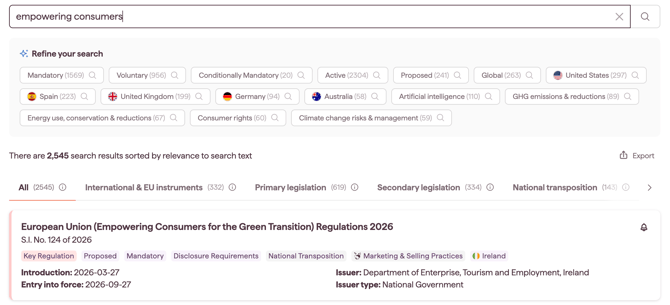
Each result shows the regulation's title, country, status, and enforcement level, along with any applicable icons. Selecting a regulation opens its detail page, which includes:
- a description of the regulation
- geographical scope
- legally binding force
- targeted entities
- associated sanctions
- sectors concerned
- type of regulator
- links to the official source
- the ESG topics referenced in the regulation
- the AI Insights tab. See AI Insights for Regulations
The detail page URL is shareable: use it to bookmark or share a regulation with colleagues.
Default sort
Within the selected document type tab, results are sorted by the latest update date first. When a text query is included, results are sorted by relevance. See Using full-text search for more on text sorting.
Saving Research results as a new View
If a Research query proves valuable, save it as a View so it appears in Monitoring:
- With your filters and any text query set, click Save view.
- Give the View a clear, descriptive name.
- Switch on Receive email notifications if you want to be alerted when new regulations match the criteria.
- Click Save.
The View appears immediately in Monitoring alongside your other Views.
Tip: When saving a View, avoid applying too many filters. A View with a tightly constrained filter set risks excluding relevant developments and missing the regulatory change you wanted to monitor. Research is where over-filtering is fine; saved Views are where it backfires.