
Analysis sharing lets the owner of a Double Materiality analysis give colleagues in the same organization access to the whole analysis, with Viewer or Editor access for each person.
Editors work in the same analysis as the owner: topic screening, IROs (Impacts, Risks, and Opportunities), scores, materiality thresholds, and reviewer assignments. A small set of actions stays with the owner: sharing, changing access, changing analysis settings, re-running the analysis, and deleting it.
Why this matters
- The team works from one analysis instead of exported spreadsheets and rebuilt copies
- Each colleague gets the access they need, and the owner can change or remove it at any time
- Every analysis keeps one named owner, so colleagues always know who manages access
- Changes are recorded in the activity log, so you can see who changed what
Access levels
- Owner: the user who created the analysis. Each analysis has one owner.
- Editor: works on the analysis alongside the owner, except for owner-only actions.
- Viewer: sees the analysis, scores, and results, but can't change anything.
- Reviewer: scores and edits only the topics or IROs assigned to them. A reviewer assignment adds to a person's access level.
Who can do what
Action |
Owner |
Editor |
Viewer |
Reviewer |
|---|---|---|---|---|
| Share the analysis and invite colleagues | Yes | No | No | No |
| Change or remove someone's access | Yes | No | No | No |
| Change analysis settings or re-run the analysis [TBC: verify which UI action "re-run" refers to] | Yes | No | No | No |
| Change the IRO score formula when IROs already exist (resets all scores) | Yes | No | No | No |
| Delete the analysis | Yes | No | No | No |
| Screen topics, including top-down decisions | Yes | Yes | No | No |
| Create and edit IROs in the IRO Hub and Industry Landscape | Yes | Yes | No | No |
| Upload IROs | Yes | Yes | No | No |
| Modify materiality thresholds | Yes | Yes | No | No |
| Assign or unassign reviewers | Yes | Yes | No | No |
| Approve scores after assessment | Yes | Yes | No | No |
| Create a new version | Yes | Yes | No | No |
| Score and edit assigned IROs | Yes | Yes | No | Yes |
| View the analysis, scores, results, collaborators, and reviewers | Yes | Yes | Yes | Assigned IROs only |
Who you can share with
- Viewer and Editor access is available only to colleagues with a DMA license in your organization
- Contributors can't be added as collaborators; they can only be assigned as reviewers
- The people picker only lists colleagues you can invite
Your platform role (set by your Admin in user management) determines the access you can be granted. Your access level decides what you can do in one specific analysis.
How to share an analysis
- Open the Double Materiality module.
- Click the three-dot menu next to the analysis and select Share.

- In the pop-up, search for and select the colleague (s) by name and/or email.
- Select Editor or Viewer for that colleague(s).
- Click Share.
What happens after sharing
- The colleague(s) receive an email with a direct link to the analysis.
- The colleague appears in the collaborators list with their access level.
How to open a shared analysis
Option 1: Open from the email
Click the link in the invite email to open the analysis directly.
Option 2: Access from the platform
- Open the Double Materiality module.
- Open the Analysis Name dropdown.
- Select the analysis tagged Editor or Viewer.
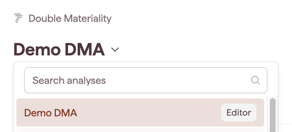
All versions of the analysis are shared, so you can switch between versions as the owner does.
How to change or remove access
Only the owner can change or remove access.
- Click the three-dot menu next to the analysis and select Share.
- Next to the colleague's name, select a new access level, or select X to remove.
- Click Done.
What happens after changing access
- The colleague's new access applies the next time they open or refresh the analysis.
- After you remove a colleague, they no longer see the analysis in the Analysis Name dropdown.
How to see who has access
Click the avatar button at the top-right side of the page to see who is online, who has access to the analysis, and each person's access level. Everyone with access to the analysis can open this list. To change someone's access, the owner uses Share, which only the owner sees. Reviewers are listed separately from collaborators.
Reviewers and shared access
Owners and editors can assign reviewers to IROs.
- If you assign a colleague who already has Viewer or Edit access, they keep that access and can also score the topics or IROs assigned to them.
- If you assign someone who isn't a collaborator yet, they're invited as a Contributor and can work only on the topics or IROs assigned to them.
Working on the same analysis at the same time
- Changes made by colleagues appear after you save or refresh the page.
- The analysis doesn't lock an IRO while someone is editing it. Edits are shown live.
-
To see what colleagues changed, open the activity log. See Activity log in a Double Materiality analysis.
Note: The activity log records changes made from October 2026, when analysis sharing was released. Changes made before that date don't appear in the log or in the export.
Note: Uploading IROs when IROs already exist overwrites them. A warning appears before the upload starts, and the overwrite can't be reversed or recovered.
Ownership
- Each analysis has exactly one owner, and ownership can't be transferred from the Share pop-up.
- An Admin can reassign an analysis to another user through user management. See Account & Profile.
- Admins don't see the content of an analysis by default.
- When an Admin deactivates the owner's account, the platform prompts them to reassign the owner's analyses.
Notes on how this feature is designed
- Sharing covers the whole analysis and all its versions. You can't share only some topics or IROs.
- Colleagues with Viewer or Editor access can't delete the analysis or share it with others
- Sharing is available in the Double Materiality module only