
The activity log lists every change made in a Double Materiality analysis, with the previous and new value for each change. Each entry shows who made the change and when.
Everyone with access to the analysis can open the activity log.
Note: The activity log records changes made from October 2026, when analysis sharing was released. Changes made before that date don't appear in the log or in the export.
Why this matters
- See what colleagues changed since you last opened the analysis
- Find a specific change by filtering on the type of item that changed
- Keep a record of changes to scores, thresholds, and materiality decisions for your audit trail
Where to find the activity log
- Open the Double Materiality module.
- Click the three-dot menu next to the analysis and select Activity log.
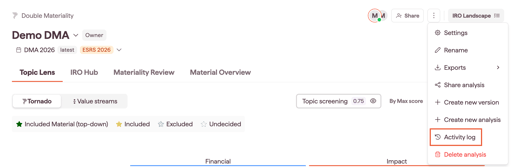
The activity log opens in a side panel.
How to filter the log
At the top of the activity log, use one or more filters:
- All actions: show one kind of action, such as Create, Update, Delete, or Upload
- All actors: show changes made by one colleague
- All types: show changes to one type of item. The selector lists all available types.
- From and To: show changes made within a date range
The log is split into pages. Use the page numbers and arrows at the bottom of the log to move between pages.
How to download the activity log
- Open the activity log.
- Click the download icon at the top right of the side panel.
The full log downloads as an Excel file, including the previous and new value for each change.
Note: The download always includes every entry in the log, regardless of the filters you apply.
Notes on how this feature is designed
- Changes made by colleagues appear in the log after they save. Refresh the page to see the latest entries.
- For who can make each type of change, see Sharing a Double Materiality analysis with colleagues