
Monitoring is your home base for regulatory monitoring. It lists every View saved in your workspace, your own and your colleagues', so you can track what has changed across your monitoring universe in one place.
Use Monitoring for your recurring catch-up: weekly, fortnightly, monthly, or whatever cadence works for your team.
Why this matters
- Review what has changed across every View in your workspace from a single page
- Set a time range once and apply it across all Views (last week, last month, last 3 months, and more)
- Build on your colleagues' monitoring work without duplicating setup
- Switch email notifications on or off, rename, or delete your Views without leaving the page
Where to find Monitoring
- In the main menu, select Regulations.
- Click Monitoring.
What you see in Monitoring
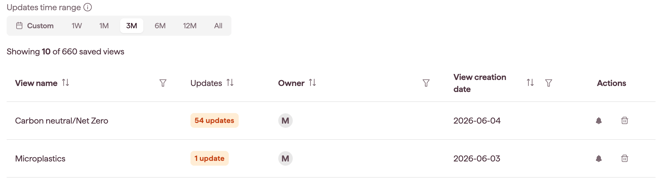
- A View list showing every saved View in your workspace. Each View card shows its name, creation date, and owner
- A time-range filter at the top, to display the number of regulatory updates for each view in a certain period of time
- Filters and sort control to narrow or reorder the list of Views
- Housekeeping controls on each View card to switch notifications on or off, or delete the View
The Monitoring workflow
Working in Monitoring typically follows these steps. Each has its own article with full detail.
- Set a time range. The time range applies across every View on the page and drives the "what's new" count on each View card.
- Filter or sort the View list. Find a specific View by name or owner, or sort to surface the Views with the most new activity. See Managing your Views in Monitoring
- Drill into a View. Open a View to see the matching regulations, with tiles and charts that summarise what's new. See Reading a View: time range, metrics, and charts
- Manage your Views. Rename, delete, or switch notifications on or off without leaving Monitoring. See Managing your Views in Monitoring
Your Views and your colleagues' Views
Every View saved in your workspace is visible to every user. This is deliberate: it surfaces what your colleagues are tracking, prevents duplicate setups, and builds shared regulatory awareness.
- Your own Views appear first on the list. You can manage them (delete, switch notifications on or off). You can rename a View when it is open.
- Colleagues' Views are visible and you can open and drill into them. You cannot rename or delete a View you did not create.
- To receive email notifications for a colleague's View, save your own copy and switch notifications on. Notifications are per-user, not per-View.
For more on collaborating around Views, see Managing your Views in Monitoring
Anchor a cadence
Monitoring is most useful when it becomes a habit. Agree a cadence with yourself or your team:
- weekly: set the time range to Last week and review your most active Views
- monthly: set the time range to Last month for governance prep or board-level briefings
- quarterly: set the time range to Last 3 months for cross-functional updates
Email notifications keep you alerted to changes in real time. Monitoring is the consolidated read-back.