Custom fields let you tailor the IRO (Impact, Risk, and Opportunity) assessment to your organization's specific data requirements for a double materiality assessment.
The custom fields management tool in the IRO Hub (at the Analysis Version level) lets you:
- create new custom fields and define which IRO types each field applies to
- decide which custom fields SMEs can edit during the IRO assessment
- delete fields that are no longer needed
Important: Custom fields apply globally across all IROs within a given version. Once IROs have been assigned to a reviewer, custom fields for that version can no longer be created, deleted, or have their IRO type changed.
Note: This lock applies to the field structure (adding, deleting, and setting the IRO type). It does not affect the values held in each field. Editing custom field values is covered in Editing Custom Fields in the IRO Hub.
Starting Point
If you've uploaded IROs containing custom fields, those fields automatically appear in the Custom fields modal as your starting set. From here, you can add new fields or delete existing ones, provided no reviewer assignment has occurred.
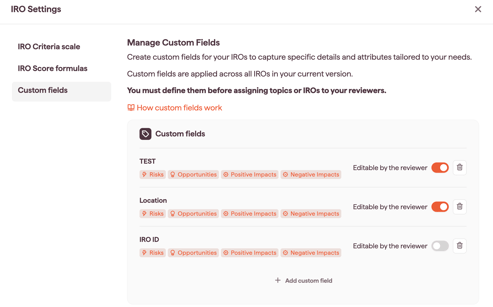
How custom fields are ordered
Custom fields are listed in alphabetical order. This order is consistent across all IROs of the same type, so a field appears in the same position on every IRO where it applies.
Creating a new custom field
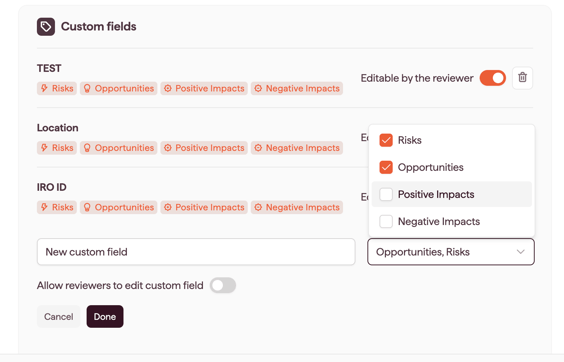
- Click Add custom field.
- Enter a name in the New custom field box.
- Open the IRO type dropdown and select one or more types:
- Risks
- Opportunities
- Positive Impacts
- Negative Impacts
- Optional: turn on Allow reviewers to edit custom field to let SMEs add their own input to this field (see below).
- Click Done.
Note: The IRO type selection cannot be changed after the field is created. If you need to change the type, delete the field and create a new one.
Making a custom field editable by SMEs
When a custom field is editable by SMEs (Subject Matter Experts), each SME assigned to an IRO can add their own input to that field before submitting their IRO assessment. The field can be empty or pre-filled by the Analysis Owner.
To make a field editable:
- New field: turn on Allow reviewers to edit custom field before clicking Done.
- Existing field: in the Custom fields modal, turn on the Editable by the reviewer toggle next to the field.
Each SME edits their own copy of the field, and the Analysis Owner reviews every SME's entry at the aggregation step. For who can edit field content and when, see Editing custom fields in the IRO Hub. For the aggregation step, see Aggregating multiple SME assessments.
Deleting a custom field
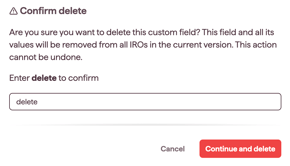
Deleting a custom field also deletes all associated values from every related IRO.
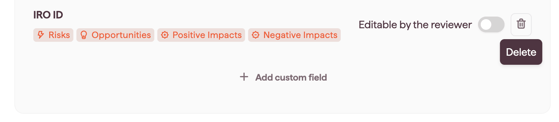
Warning: This action is permanent and cannot be undone.