
Targets lets you benchmark the published targets in your latest sustainability, financial, or 10-K reports against those of your peers.
Targets are extracted automatically from the companies you select for the latest published report of each type (sustainability, financial, or 10-K). You choose the peer set; Datamaran identifies the targets within those reports.
Why this matters
- See which topics your peers are setting targets on, and where you have gaps
- Compare your own targets against the wider peer group at topic level
- Find the underlying target statements, metrics, and timelines behind every result
- Organise results quickly using insight tags that flag coverage gaps and differentiators
Where to find Targets
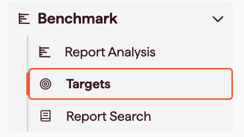
Open Benchmark in the main menu, then select Targets.
How to create a Targets analysis
- In the Targets module, click New Analysis.
- Type a name for your analysis.
- Click the Select Organizations drop-down to choose the peer companies to include.
- In the side modal that opens, type peer company names to add them, or load a saved peer list.
- When you are happy with the companies included, click Create Analysis.
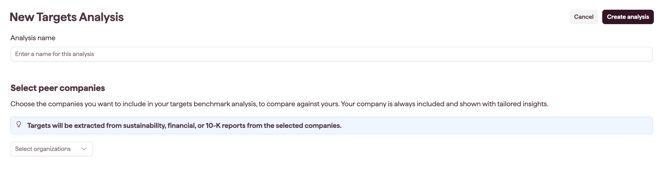
Note: Targets are extracted from the latest sustainability, financial, or 10-K reports of the companies you select. You cannot choose the report type.
Reading the Targets benchmark results
The first page lists every Datamaran topic with at least one identified target across your peer set. Each row shows the following columns:
- Topic: the Datamaran topic the targets relate to
- Coverage: the portion of organisations reporting at least one target for this topic
- Average Targets: the average number of targets across all organisations
- My company: the number of targets identified for your company
- Insights: tags that group the benchmark results so you can scan them quickly
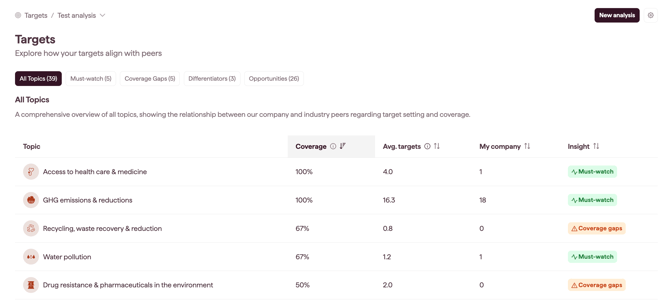
The insight tags at the top of the list are also clickable, and can be used to filter the list to a single tag. For what each tag means, see Targets Insight tags.
Exploring targets for a topic
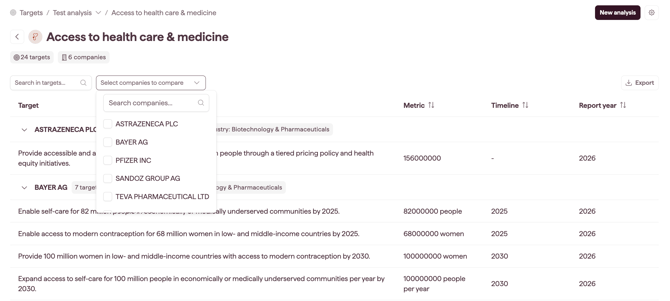
Click a topic to dive deeper into the content analysed. The initial list shows all the targets analysed for that topic across your peer set. You can also export the results on a spreadsheet.
To narrow what you see:
- use the magnifying glass icon to search targets by text
- select specific companies to compare
For each target, the table also shows the metric, the timeline, and the report year. For how report years are assigned, see What publicly available reports does Datamaran track?
Target statement details
Click a target statement to open a side modal with additional detail:
- the organisation name
- the related Datamaran topic
- the sources used to produce this target statement
- all the report mentions used to produce this target statement, including the source
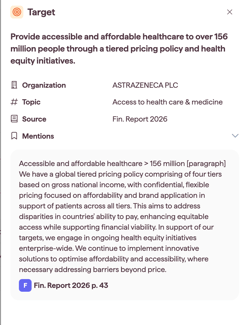
Tip: The report mentions show the underlying text behind each target statement. A single statement can draw on more than one mention, so the quotes may not match the statement word for word. For how Datamaran groups mentions into a target statement, see How Datamaran identifies and counts target statements