
Topic Screening shortlists the long list of scored topics to those most likely to be material, so you can focus your assessment. It is a prioritization step, not a materiality decision. Each included topic's materiality conclusion is reached later, on its materiality path. See Choosing a topic's materiality path: top-down or bottom-up.
Run topic screening first to decide which topics move forward. Then, optionally, run a screening survey to collect stakeholder votes. Use the results on each topic's Evidence panel tab to choose its materiality path (top-down or bottom-up), or to confirm a topic you excluded.
Why this matters
- Focus your assessment on the topics most likely to be material
- Set a threshold that fits your topic volume and risk appetite, and change it at any time
- Record why topics were included or excluded, for your audit trail
Interpreting topic score results
After you run your Double Materiality Assessment (DMA), the platform produces a long list of potential topics, shown in two views.
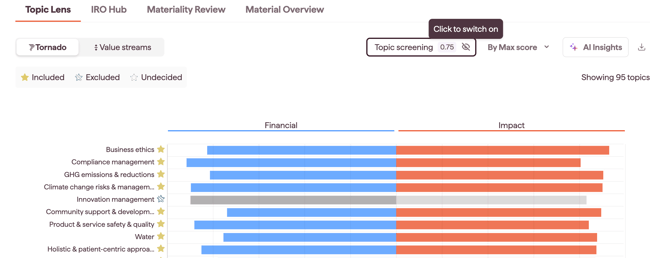
Tornado view
This view ranks topics based on the evidence found. Click any topic to open its details and explore the supporting data and sources. You can add notes explaining why a topic is or isn't relevant to your organization.
Note: a topic concluded material through the top-down path shows a green star, Included Material (top-down), in the Tornado view.
Value streams view
This view evaluates topic relevance by value stream. As in the Tornado view, click the Financial or Impact side of a topic to see the breakdown.
Refining the topic list with Topic Screening
To narrow the long list to the topics most relevant to your business and value chain, use Topic Screening.

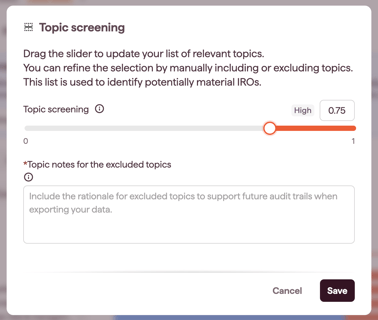
In the Topic Screening popup, filter topics by how likely they are to represent material IROs (Impacts, Risks or Opportunities). The probability levels are:
- Low -, Low, Medium, High, High +
Adjust the filter using the slider, or enter a value between 0.01 (Low -) and 1 (High +). You can update this filter at any time.
How the topic list is categorized
Based on the probability threshold you set, the long list is split into two groups.
Included
Topics above the threshold move forward to the next stages. For each included topic, you then choose a materiality path:
- Top-down: conclude the topic is material at topic level, without scoring each IRO
- Bottom-up: identify the topic's IROs and assess each one, then apply a threshold
Screening does not make this choice for you, and it does not conclude materiality on its own. Only bottom-up topics have their IROs assessed individually; top-down topics are concluded at topic level. See Choosing a topic's materiality path: top-down or bottom-up.
Note: Screening survey results don't change a topic's Included or Excluded status on their own. Use them to choose the materiality path of Included topics, and to confirm or reverse an exclusion before you move on.
Excluded
Topics below the threshold are excluded from further analysis. You are asked to add a rationale in the Topic Screening popup, which supports reporting quality and your audit trail.
Manually adjusting topic inclusion
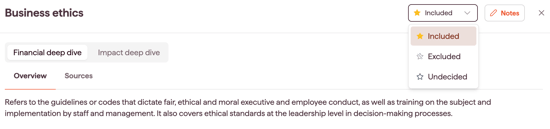
If a topic matters but falls below the threshold, you can include it manually. If a topic scores above the threshold but is not relevant, you can exclude it.
To change a topic's status:
- Click the topic to open its detailed view.
- In the top-right corner, select Included or Excluded from the dropdown.
Note: the same dropdown shows the topic's current status: Included, Excluded, Undecided, or Included Material (top-down).
To find and manage excluded topics:
- Click the Topic Screening button.
- Find the topic, open its detailed view and use the Notes feature to update its classification.
Tip: If you plan to run a screening survey, check which topics it includes. The survey's Use Topic screening option applies your cap, but not topics you included or excluded manually. To match the survey to your Included topics, select them manually when creating the survey. See Creating a screening survey.
Next steps
Your refined list of included topics is the basis for the next DMA stages. What happens next depends on the path you set for each topic: concluding it top-down, or identifying and assessing its IROs bottom-up. See Choosing a topic's materiality path: top-down or bottom-up.
To export your full topic list, including scores, data sources and value stream details, click the three-dot menu and choose Exports > Topic Scoring Export.