Topic Monitoring lets you compare two versions or snapshots of a Double Materiality Assessment (DMA) to see how topic scores have moved between them. Instead of waiting for the next DMA cycle to find out what's changed, you can check in at any time and see which topics are gaining or losing relevance, and what's driving the shift.
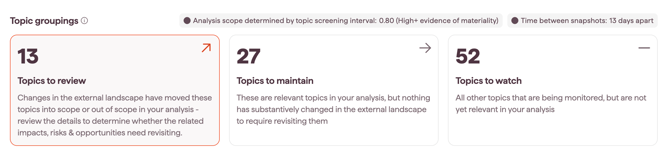
It's built for continuous visibility between cycles: pick two points in time, and Topic Monitoring reads the difference in each topic's score and sorts every topic into a grouping that tells you where to look.
Why this matters
- See what's moving between DMA cycles, instead of waiting for the annual exercise to find out what changed
- Get a data-driven starting point for review, so you're not re-debating materiality from a blank page
- Back every flagged movement with evidence you can click straight into
- Run a defensible quarterly update without rebuilding your DMA or exporting to a spreadsheet
Where to find Topic Monitoring
- In the left menu, select Issue Analysis to open the dropdown.
- Click Topic Monitoring.
How to compare snapshots
- Select the Double Materiality analysis you want to review from the Double Materiality Analysis drop-down.
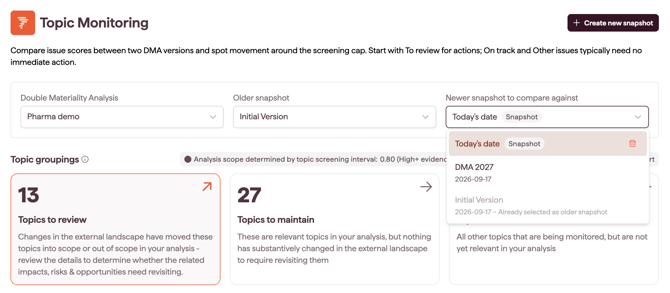
- Select your baseline version from the Older snapshot drop-down. This defaults to the oldest version, but you can choose a different one.
- Select the version you want to compare it against from the Newer snapshot drop-down. The comparison loads automatically once both are selected.
Note: You can compare any two existing DMA versions, or a snapshot created directly in Monitoring (see Creating a new snapshot below).
Creating a new snapshot
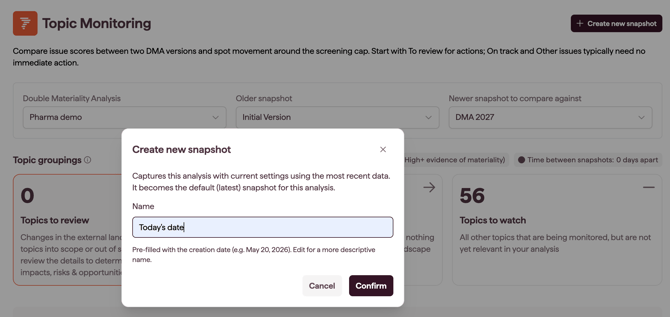
- Click Create new snapshot in the top right of the page.
-
Give it a name that includes the date or a short description, so you can find it when comparing against a later snapshot.
What happens after saving
The snapshot is saved within Topic Monitoring only. It isn't written back to the Double Materiality module, so creating snapshots for ongoing monitoring won't add extra versions to your DMA.
Understanding the Topic Screening interval
The Topic Screening in your double materiality analysis sets the relevance threshold a topic needs to meet to be carried forward in the analysis.
It doesn't determine materiality. Materiality decisions are made separately, at IRO level, within the DMA. Topic Monitoring uses the screening interval only as the reference line for reading movement: is a topic moving toward the interval, moving away from it, or holding its position.
A comparison always involves two snapshots, so Datamaran needs a single interval to measure both against. It takes the interval from the newer snapshot first. If the newer snapshot does not have one set, it uses the older snapshot's interval. If neither has one set, it defaults to 0.8.
Note: Topic Screening and materiality decision are separate concepts. The interval sets a relevance threshold; materiality is decided at IRO level. Refer to Using the Topic Screening to Identity Relevant Topics for more details.
The three groupings
Every topic in the comparison is sorted into one of three groupings. Each grouping is also a filter you can select to narrow the list.
- Topics to review: changes in the external landscape justify a review. Datamaran flags what is driving the change, any linked IROs (material IROs linked, non-material IROs linked, or No IROs linked), and which axis the evidence is moving on (financial, impact, or both).
- Topics to maintain: the topic remains relevant with no significant movement between the two snapshots. You can still open it to see how little it moved.
-
Topics to watch: the topic is parked, either because it is excluded from the analysis and stable, or because you have manually excluded it. Manually excluded topics stay here regardless of their score.