
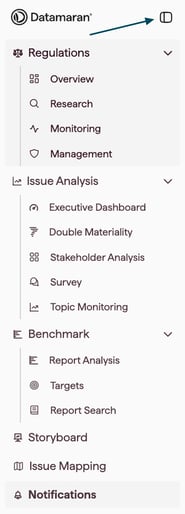
Datamaran uses a side menu to help you navigate between modules and key areas of the platform. You can collapse the menu to create more space on your screen, and you can access Profile, the Help Center, and your company’s Shared space from the bottom of the menu.
Why this matters
- Find the right tool faster: The menu is organised to match how users work across modules.
- More space when you need it: Collapse the side menu to focus on what you’re working on.
- A consistent place for account and help: Profile and Help Center are always in the same location.
- One entry point to enablement resources: Open your company’s shared space (when configured) directly from the platform.
Using the side menu
Expand or collapse the menu
-
In the left navigation, select the collapse/expand control at the top of the side menu.
-
The menu switches between:
-
Expanded view (shows navigation labels), and
-
Collapsed view (uses less space).
-
Tip: The collapsed view is especially useful on smaller screens or when you want to maximise workspace.
Navigate between modules
Use the side menu sections to move between Datamaran modules.
- Regulations includes Overview, Research and Monitoring
-
Issue Analysis includes Executive Dashboard, Double Materiality, Stakeholder Analysis, Survey and Topic Monitoring.
-
Benchmark includes Report Analysis, Report Search and Targets.
Finding your Profile and the Help Center
Profile menu
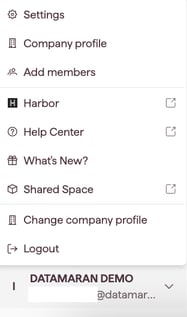
Your Profile menu is where you access user options, settings, and support links.
Open the Profile menu
-
Go to the bottom of the side menu.
-
Select your user name to open the menu.
The Profile menu contains:
- Settings (available to all users): opens user management, where you can view and manage your organisation's users, roles, and licences. See Managing users and permissions.
- Add members (Account Owners and Admins only): add new users to your organisation. See Add a user.
- Harbor: opens Harbor
- Help Center: view Datamaran support content.
- What's New: see recent product updates.
- Shared space: open your organisation's shared space (when configured).
- Log out: sign out of Datamaran.
Settings and user management
Settings is available to all users. Select Settings to manage your organisation's users, roles, and licences [TBC: confirm the label shown inside Settings for the user management area].
For step-by-step instructions, see Managing users and permissions.
Shared space
A Shared space is a link to your organisation's dedicated URL, where we share onboarding materials, enablement content, and key documentation.
- Open the Profile menu.
- Select Shared space.
- Your company's shared space opens in a new tab/window (when configured).
Note: If you don't see Shared space, it may not be configured for your organisation yet.
In-app chatbot
Use the chatbot for quick, in-context help while you work in Datamaran.
Open the chatbot
-
Select the chatbot icon in the bottom-right of the screen.
-
Type your question.
What the chatbot can help with
The chatbot is designed to help you with how to use Datamaran, based on the information available in the Help Center.
What the chatbot can’t help with
The chatbot does not provide:
-
Regulatory guidance
-
Legal advice
-
Compliance advice
-
Benchmarking guidance
-
Materiality determinations
-
Applicability guidance
For these topics, please refer to the relevant Datamaran modules for insights.
Request a live agent
If you can’t find the help you need, you can ask the chatbot to connect you to a live agent.
Live agent support is available during EU/US working hours, Monday to Friday. This excludes national holidays in countries where Datamaran has offices.
If an agent is not available, we’ll get back to you on the next working day.