
Running an Applicability Assessment takes a few steps in a short setup wizard: choose the regulations, choose the entities, and start.
You can start from a Saved View in Monitoring, or start a new assessment from Management.
Why this matters
- Assess the exact set of regulations you already monitor, straight from a Saved View
- Check a single entity, a selection of entities, or a whole group with its subsidiaries in one run
- Leave the page while a large assessment runs, without losing progress
Before you start
Make sure the entities you want to assess are set up in Company Profile, with as many fields completed as possible. Missing details do not block the assessment, but results that need them show as Uncertain until you add them. For more on the data the assessment uses, see Understanding Applicability Assessment.
Where to start an assessment
Use either entry point. Both open the same setup wizard.
- From a Saved View: go to Monitoring, open one of your Saved Views, and click Run applicability assessment
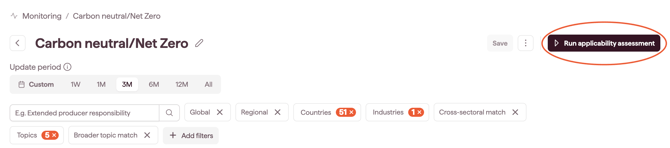
- From Management: go to Regulations > Management and start a new assessment

How to run an assessment
Step-by-step
- Open the setup wizard from one of the entry points above.
- Choose your regulations from one of three tabs:
- Saved views: select one of your Saved Views. Use the timeline selector to set the time period you want to assess.
- Curated search: search for and select specific regulations, including by text.
- Reg Notifications: select from the regulations you track with individual notifications.
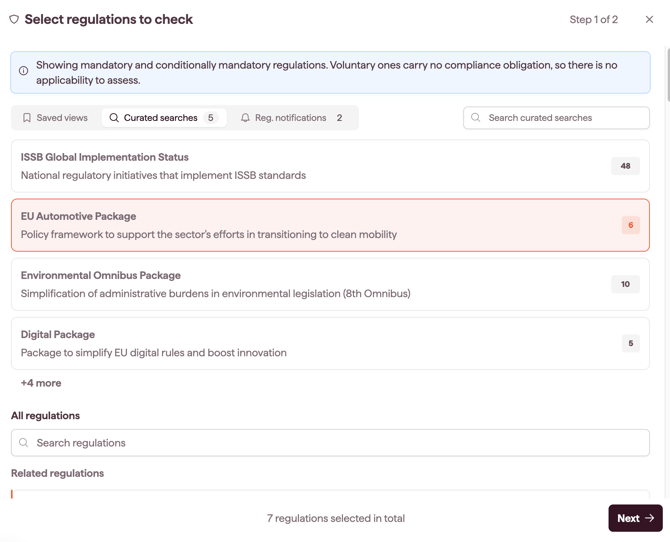
- Click Next.
- Choose your entities or groups:
- select one of your saved groups to include all its entities
- or, in the list of all entities, select the ones you need by scrolling down, or search for entities by name
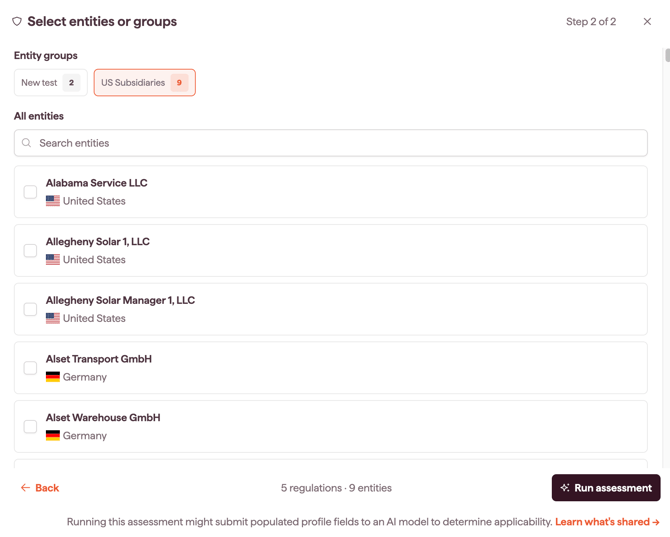
- Click Run Assessment.
Note: Only mandatory and conditionally mandatory regulations appear in the wizard, as voluntary regulations carry no compliance obligation to assess.
Tip: The timeline selector is only available in the Saved views tab.
Making a regulation available under Reg Notifications
A regulation appears in the Reg Notifications tab once you switch on its individual notification. Click the bell icon on the regulation's card in Overview, Regulations Research, or inside a Saved View in Monitoring. For more, see Following an individual Regulation or Initiative.
Assessing a selection of entities
You cannot create a new group from the wizard. To assess entities that do not belong to the same group, select them individually in step 4. To create or edit a group, use Company Profile.
After you click Run Assessment
A new page opens where you can name your assessment. Naming is optional: if you skip it, the assessment is named automatically as New assessment with a number and the date. For easier tracking, name it straight away with a name that makes the scope clear to other users, for example the regulations and entities it covers. You can rename it later with the pencil icon next to its name.
A banner then shows that the analysis is running, and the assessment carries an In progress tag until results are ready. When the analysis finishes, the tag changes to Completed.
The more regulation-entity pairs an assessment has, the longer it takes:
- Small assessments are ready in moments
- Large assessments, with many entities or regulations, can take a few minutes
You can leave the page while it runs; results keep processing and appear when ready.