
Applicability Assessment results show a determination for each entity and regulation, with the criteria and reasoning behind it. From the results, you can fill in missing entity data, review each AI determination, override it after manual validation, track which results have been reviewed, and export everything to Excel.
Why this matters
- Check the reasoning behind each determination before you rely on it in your compliance review
- Turn Uncertain results into a clear answer by adding the missing entity data
- Validate each AI determination and record your decision, with a note other users can see
- Track review progress across the assessment, so you know which results still need attention
- Share the results with your legal or compliance team in Excel, with the criteria and AI reasoning behind each one, without them needing a Datamaran login
Reading your results
Each entity gets one determination for each regulation: Likely, Unlikely, or Uncertain. Each result also has an assessment status that tracks your review: To assess, Complete, or Not required.
The assessment page opens with six summary cards, each showing how many regulation-entity pairs fall under it:
- Likely applicable, Uncertain, and Unlikely applicable count the pairs by determination
- To assess, Complete, and Not required count the pairs by review status
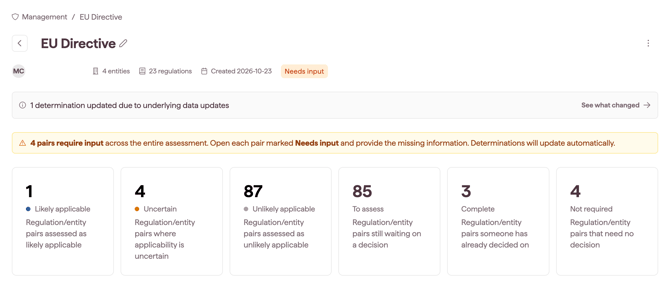
Below the cards, the By regulation and By entity tabs show the same results grouped in two ways. Each tab has its own search bar, so you can find a specific regulation or entity.
- The Determination column shows how many pairs fall under each determination, and an AI tag marks determinations made by the AI
- The Assessment status column shows a progress bar with the percentage of reviewed pairs for each regulation or entity, and a status dropdown for each pair
To see the details of a result:
- Open the By regulation or By entity tab.
- Click the arrow next to a regulation to see each entity and its determination, or next to an entity to see each regulation and its determination.
- Click the entity or regulation to open its Assessment panel. Use the entity selector at the top to switch between entities.
The Assessment panel shows the Determination and the criteria behind it, grouped by status:
- Met: the entity matches the criterion
- Not met: the entity does not match the criterion
- Missing information: the entity's profile does not have the information needed to check the criterion
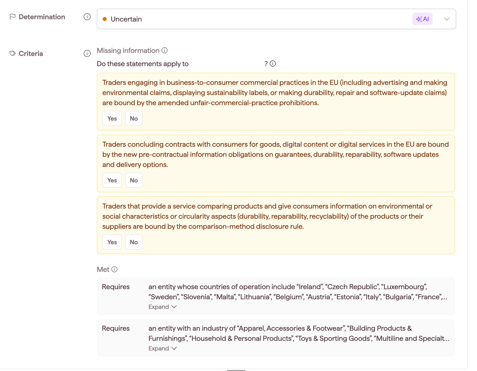
Each criterion shows what the regulation requires. Click Expand to see the full requirement, for example the complete list of countries of operation or industries that apply. Together, the criteria explain how the determination was reached.
How to fill missing information
When a criterion needs information the entity's profile does not have, the pair is marked Needs input. You can see this at every level:
- the assessment shows a Needs input tag, and a banner at the top tells you how many pairs require input
- each regulation or entity row shows how many of its pairs need input, for example 5 pairs
- each affected pair shows Needs input instead of a determination
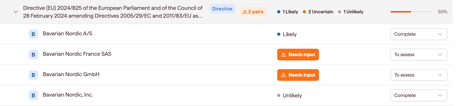
You can fill in the missing information directly from the assessment, without going back to Company Profile.
- Click a pair marked Needs input to open its Assessment panel.
- Under Missing information, review each statement.
- Click Yes or No for each statement that applies to the entity, as far as you know. Leave the others blank.
- Click Save changes. This triggers a re-evaluation and saves your answers to the entity's profile, so they are used in future assessments too.
- Use the entity selector to move to the next entity and repeat, so you can fill all the gaps in one go.
While the re-evaluation runs, an icon appears next to the entity and the page shows Re-evaluating after a data update at the top. The new determination appears once the re-evaluation finishes.
Note: Any change to an entity in Company Profile, including custom field values, triggers a re-evaluation of the affected results, so you do not need to start a new assessment.
How to review an AI determination
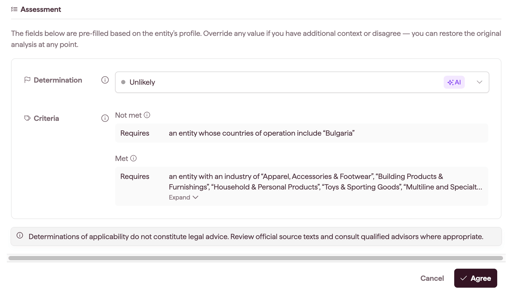
Every result starts with the status To assess. Review each one to confirm or change the AI determination.
- Open the Assessment panel for the pair you want to review.
- Check the determination and the criteria behind it.
- If you agree with the AI determination, click Agree. If you do not, override it as described below.
Once you agree or save an override, the pair's status changes to Complete. The status is not shown in the Assessment panel; close the panel to see it in the Assessment status column.
Setting a status manually
You can also change a pair's status directly from the Assessment status dropdown next to it:
- To assess: the pair is still waiting on a decision
- Complete: a decision has been made on the pair
- Not required: the pair does not need a decision
How to override a determination
After you validate a result, you can replace the AI determination with your own if your review reaches a different conclusion.
- Open the Assessment panel for the entity and regulation you want to change.
- Select a different determination from the Determination dropdown: Likely, Unlikely, or Uncertain.
- Add a note explaining why you are changing it. The note is mandatory, so other users understand the reasoning.
- Click Save changes, or click Cancel to discard.
What happens after saving
Your determination is shown instead of the AI determination, together with your note, and the pair's status changes to Complete. If the result is later re-evaluated, for example after a Company Profile update, your override stays in place.
Restoring the AI determination
To undo your changes, click Restore AI values. The result goes back to the AI determination.
How to export results
You can export an assessment to an Excel file, for example to share it with your legal or compliance team, or to keep a record of your review at a given date. Anyone with access to the assessment can export it.
- Open the assessment.
- If you only need part of the results, use the search bar or filters first. The export includes only the results that match your filters and search.
- Click the three vertical dots (⋮) at the top of the assessment page, next to the assessment name.
- Click Export.
The Excel file downloads to your computer, named after the assessment and the export date.
What the export includes
The file has three tabs:
- Guidance: what each tab and column holds
- Results: one row per regulation and entity, sorted by regulation, then entity
- Criteria: one row per criterion, for every regulation and entity in the Results tab
The Results tab has these columns:
- Regulation: the regulation assessed
- Regulation status: the regulation's status, for example Active or Proposed
- Entity: the entity it was assessed for
- Determination: Likely, Unlikely, or Uncertain
- Met: the criteria the entity's profile data satisfies
- Not met: the criteria the entity's profile data does not satisfy
- Missing information: the criteria that couldn't be checked with the entity's profile data. This is blank when the determination is Likely or Unlikely, since no new information can change it
- Note: the note added when the determination was reviewed, for example the mandatory note on an override
- Assessment status: To assess, Complete, or Not required
The Criteria tab has these columns:
- Regulation and Entity: the pair the criterion belongs to
- Criteria: Met, Not met, or Missing information
- Requires: what the regulation requires, as shown in the Assessment panel
- Details: the full requirement or statement behind the criterion, or a note added to it
- AI reasoning: why the AI answered a statement the way it did or, for a statement still waiting for an answer, why Datamaran is asking for it
When a cell lists several criteria, they are separated by a semicolon ( ; ).
Note: The Assessment status column in the file is a dropdown, but changing it there does not update the assessment. To change a status, use the Assessment status dropdown on the assessment page.
Notes on how this feature is designed
- Only the person who created an assessment can change its determinations and assessment statuses; for other users, both are read-only
- Overrides survive re-evaluation, so a data update never silently replaces a decision you made
- Any user with access to an assessment can export it, including users with read-only access
- An export is a snapshot of the results at the time you export; if results change later, for example after a re-evaluation, export again to get the latest version
- Results are a first filter to focus your review, not legal advice; always confirm applicability with your own legal or compliance review