
Managing an analysis covers what you do with an Executive Dashboard analysis after setup: duplicating it, updating it, exporting its data, and deleting it.
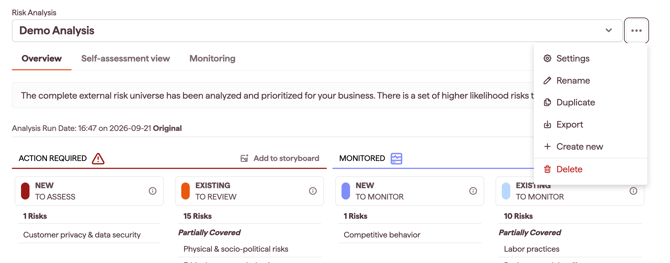
You do all of these from the Overview tab. Click the three-dots button on the analysis to open its menu.
Why this matters
- Keep your analysis current as ESG risks and regulations change
- Compare versions side by side by duplicating before you change parameters
- Keep an audit trail by exporting your data to Excel
- Remove analyses you no longer need
Duplicate an analysis
Duplicating lets you change the parameters on a copy and compare the results against the original, so you can see a different view of your data, scope and insights.
- On the Overview tab, click the three-dots button on the analysis to open its menu
- Click Duplicate
- Edit the name, then click Save & Run analysis
The copy saves to the Executive Dashboard and appears in the Risk Analysis dropdown.
Update an analysis
An analysis with monitoring snapshots updates automatically when you open it. To update one manually:
- On the Overview tab, click the three-dots button to open the menu
- Click Settings
- Update or amend the inputs, then click Save & Run analysis
Note: re-running an analysis overwrites the previous data, so duplicate it first if you want to keep the earlier version.
Your analysis saves automatically after you click Save & Run analysis. The date and time of the last save appear in the top right of the Overview tab.
Export your data
You can export data from an analysis in Excel format for traceability.
- On the Overview tab, click the three-dots button to open the menu
- Click Export
- Select the data you want to export
Delete an analysis
- On the Overview tab, click the three-dots button to open the menu
- Click Delete
- When prompted, click Confirm delete