
The Report Analysis tool, available within the Benchmark section of the menu, lets you compare your company's ESG disclosures against peers and industry-specific companies. Comparisons draw on corporate reports from the world's largest market-cap companies, including annual financial reports, integrated reports (including CSRD reports), annual sustainability reports, and 10-K SEC filings.
Why this matters
Use Report Analysis as your reference point to understand where your disclosures stand, identify gaps relative to peers, and make more informed decisions about what to prioritise in your next reporting cycle.
Creating a report analysis
- In the main menu, select Benchmark to open the section.
- Click Report Analysis.
- If this is your first analysis, click Get started. Otherwise, click Create new in the menu next to an existing analysis name.
- Name your analysis.
- Select the corporate report type you want to use in the analysis.
- Select the countries and industries to include.
- Select the companies to include. (You can benchmark using countries/industries, selected companies, or both.)
- Click Save and run analysis to generate your results.
Reading the results
Once your analysis runs, the results page shows:
- A chart displaying your company's emphasis score alongside the number of companies placing High, Medium, Low, or No Mention emphasis on each ESG topic.
- Topics ranked by the average level of emphasis across the selected companies' corporate reports.
- Gradient-coloured bars representing emphasis levels: hover over any section to see the number of companies in each category.
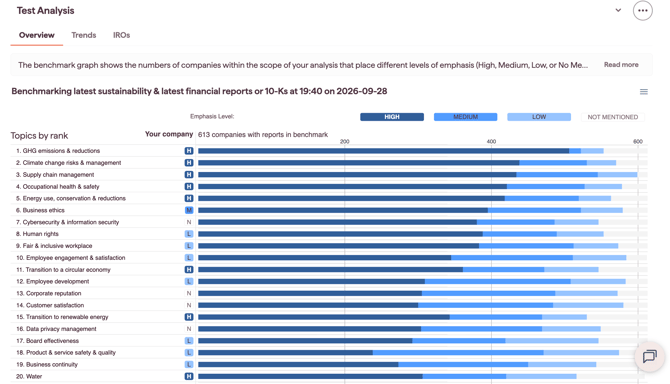
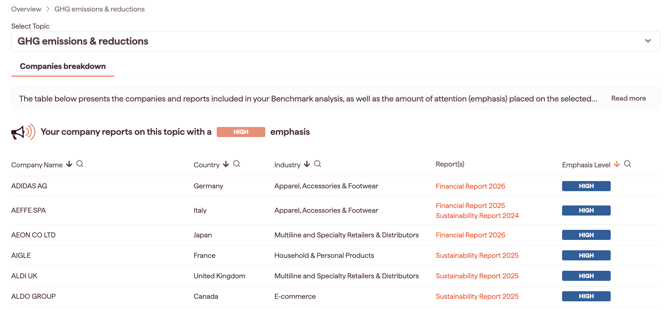
Click on a topic to view a detailed breakdown of the companies and reports, including the emphasis level each one places on that topic.
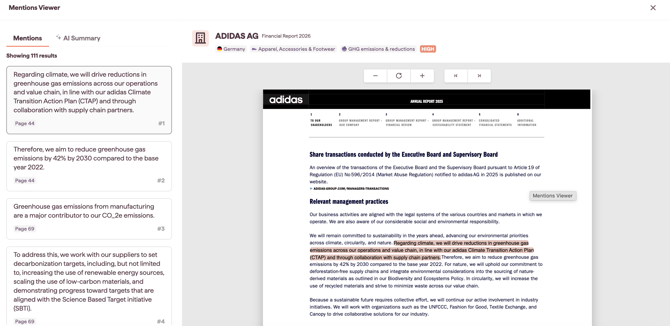
Click on a company and report to explore specific mentions within the document. Click on the mentions on the left side to highlight the mention in the report PDF.
Note: Each time the Report Analysis page is loaded or refreshed, the data in your analysis is updated.
Use cases
Report Analysis helps you:
- Understand your position – see how your disclosures compare with peers and industry leaders.
- Identify disclosure gaps – uncover where your company places less emphasis than the market.
- Track industry practices – monitor how ESG topics are addressed across corporate reports.
- Strengthen reporting – use peer insights to enhance the relevance and completeness of your own disclosures.
Downloading the Heatmap Export
The Heatmap export allows you to work with Emphasis Score data outside of Datamaran. The export is available from the Report Analysis settings and always includes the top 25 topics from your analysis, along with the Emphasis Score per company based on your current settings.
Exporting the heatmap gives you a structured, shareable view of your benchmark data, useful for internal reporting, stakeholder presentations, or further analysis in your own tools.
How to download the Heatmap export
- Open your Report Analysis and configure your analysis as needed.
- Click Settings to open the settings panel.
- Select Export Heatmap to download the file.
The export will download as an Excel (.xlsx) file.
Note: The export reflects the settings applied at the time of download, including the selected report types, publication year, and companies included in the analysis.
What the export contains
The Excel file includes the following:
- Top 25 topics: the 25 highest-ranked topics identified in your Report Analysis, based on your current settings.
- Emphasis Score per company: the level of emphasis each company places on each topic (High, Medium, Low, or No mention).
- Total Score per company: an aggregated score across all selected topics for each company, calculated as: 3 × [High] + 2 × [Medium] + 1 × [Low]
- Report types and year: the report types and year used in the analysis, so the export is fully self-documented.
- Definitions and export criteria: included as additional tabs within the file for reference.
Deleting a report analysis
To remove an analysis you no longer need:
- In the Report Analysis module, click the Menu button next to the analysis name.
- Select Delete.
- When prompted, click Confirm delete.
Note: Deletion is permanent and cannot be undone.